步骤 1: 先完成共用录屏步骤
点击打开 Recording Steps,按照共用录屏流程完成从安装扩展到停止录制的操作;该流程中的功能网址使用 https://www.clipflow.chat/features/video-features。
步骤 2: 停止录制并上传
查看状态 Stopping and uploading...。

查看状态 Upload started. Returning to Clipflow...。

不要在上传开始前关闭控制窗口。上传启动后,Clipflow 会接收录屏文件和相关事件数据。
步骤 3: 等待 Video Features 生成结果
回到 Clipflow 页面,查看任务处理状态。
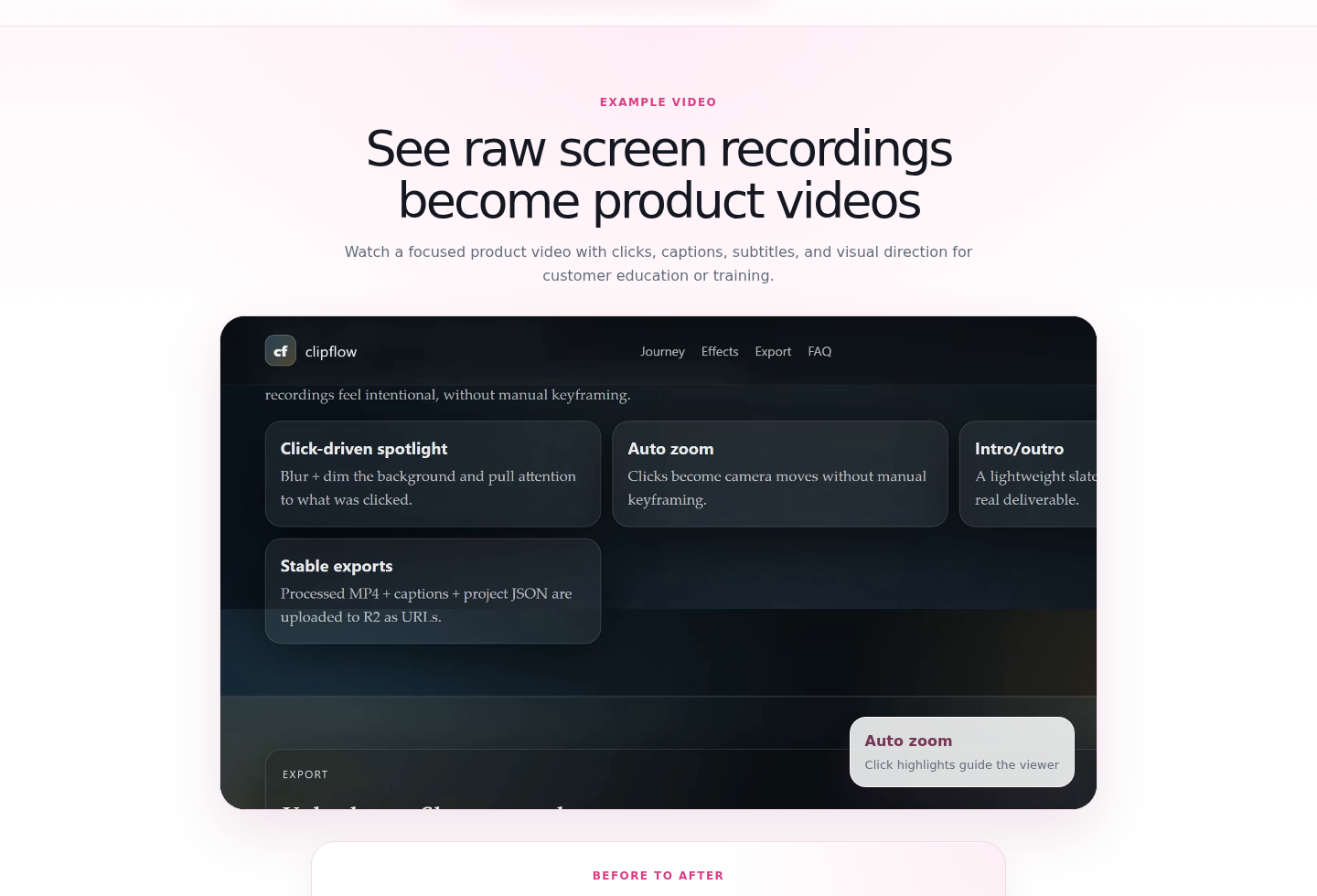
查看 Uploading source 状态。
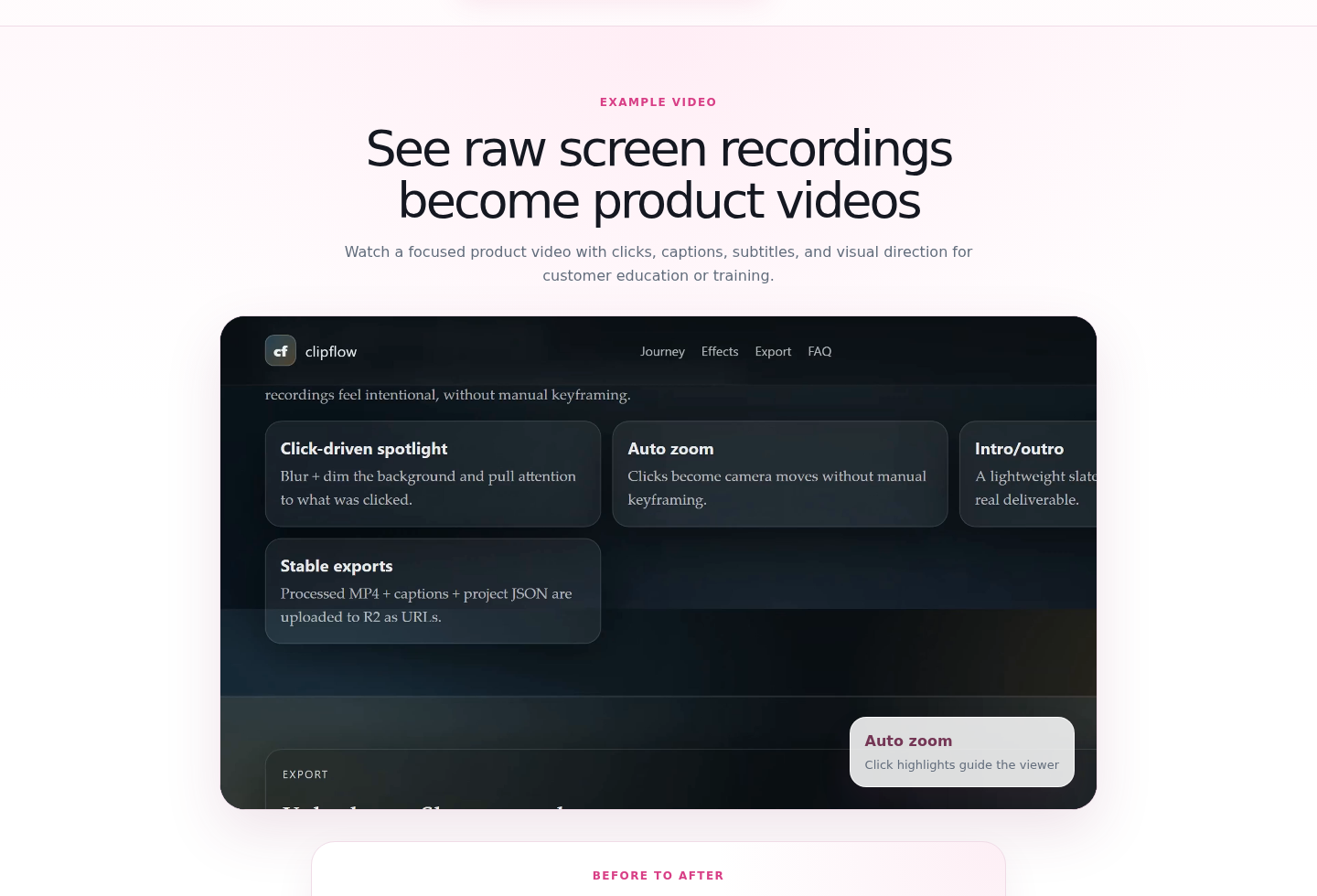
查看 Transcribing (ASR) 状态。
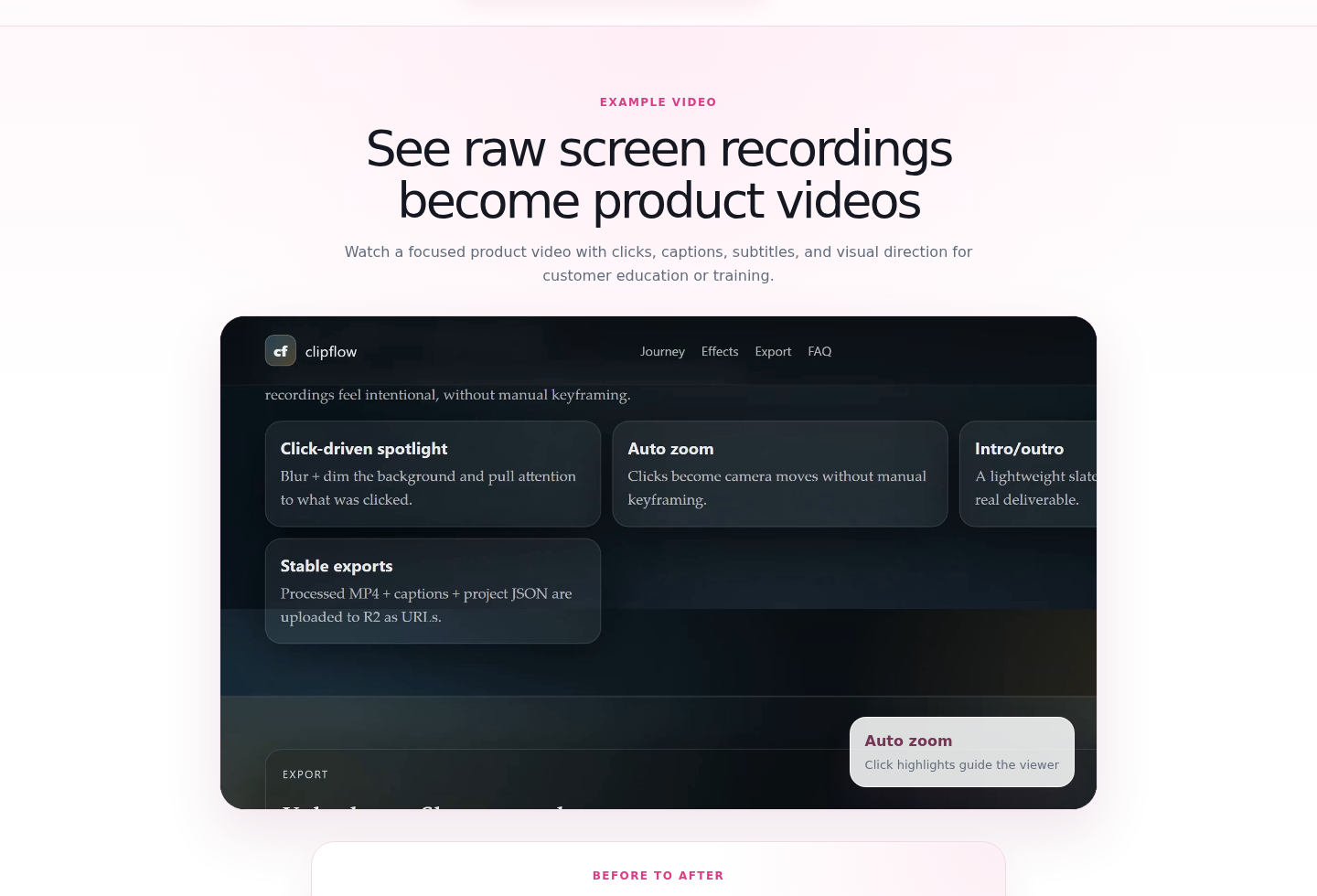
查看 Rendering video 状态。
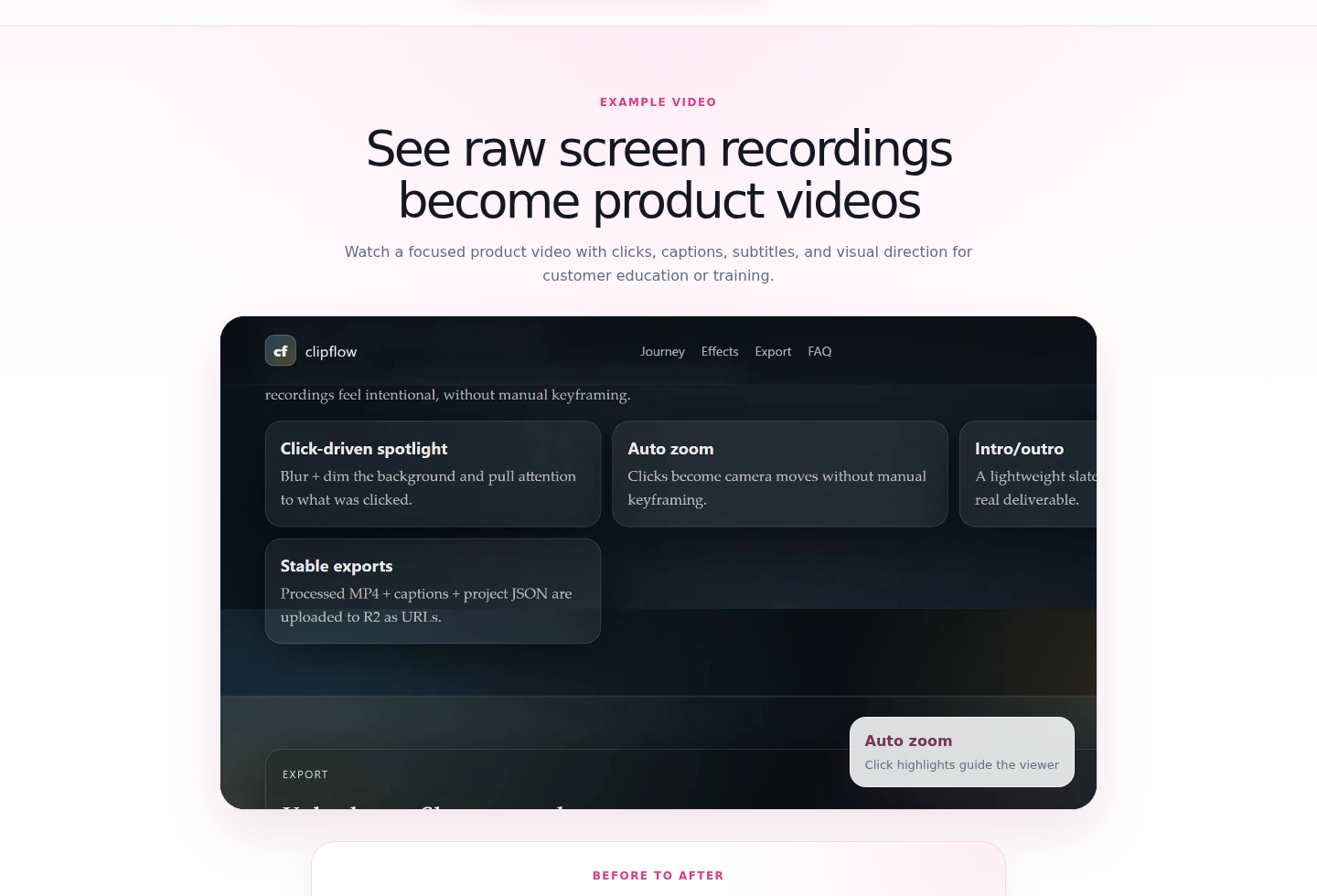
等待页面自动跳转到 Video Features 结果页。
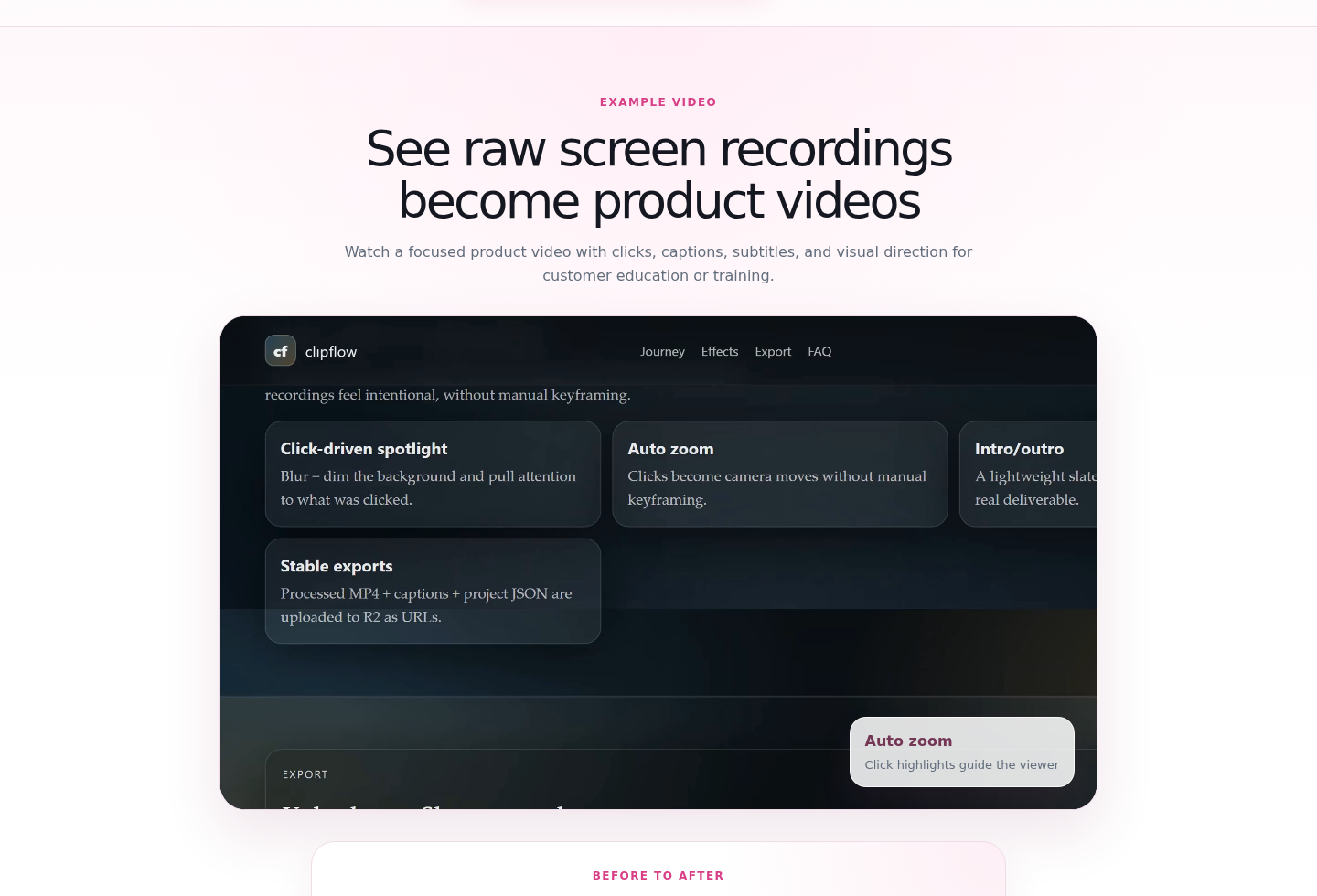
步骤 4: 查看和导出结果
在结果页点击视频播放控件,预览生成视频。

检查自动缩放和点击高亮效果。

检查 captions / subtitles。

检查 transcript。

点击导出 MP4 视频。

点击导出 captions / subtitles。

点击导出 transcript。

点击复制结果页分享链接。

点击复制 embed 代码或视频嵌入片段。

发布前重点检查关键 UI 是否清晰、字幕是否遮挡按钮,以及点击高亮是否落在正确位置。
输出格式
- MP4 视频
- 字幕/转写文本
- 结果页分享链接
- 可嵌入视频片段