Step 1: Open the PPT Video page and upload a PPTX/PDF file; if you start from a narrated recording, upload it as reference material.
Deck pages become visual source material, while narration can guide tone, pacing, and key points.
Step 2: Add audience, video goal, and narration direction, then submit the generation job.
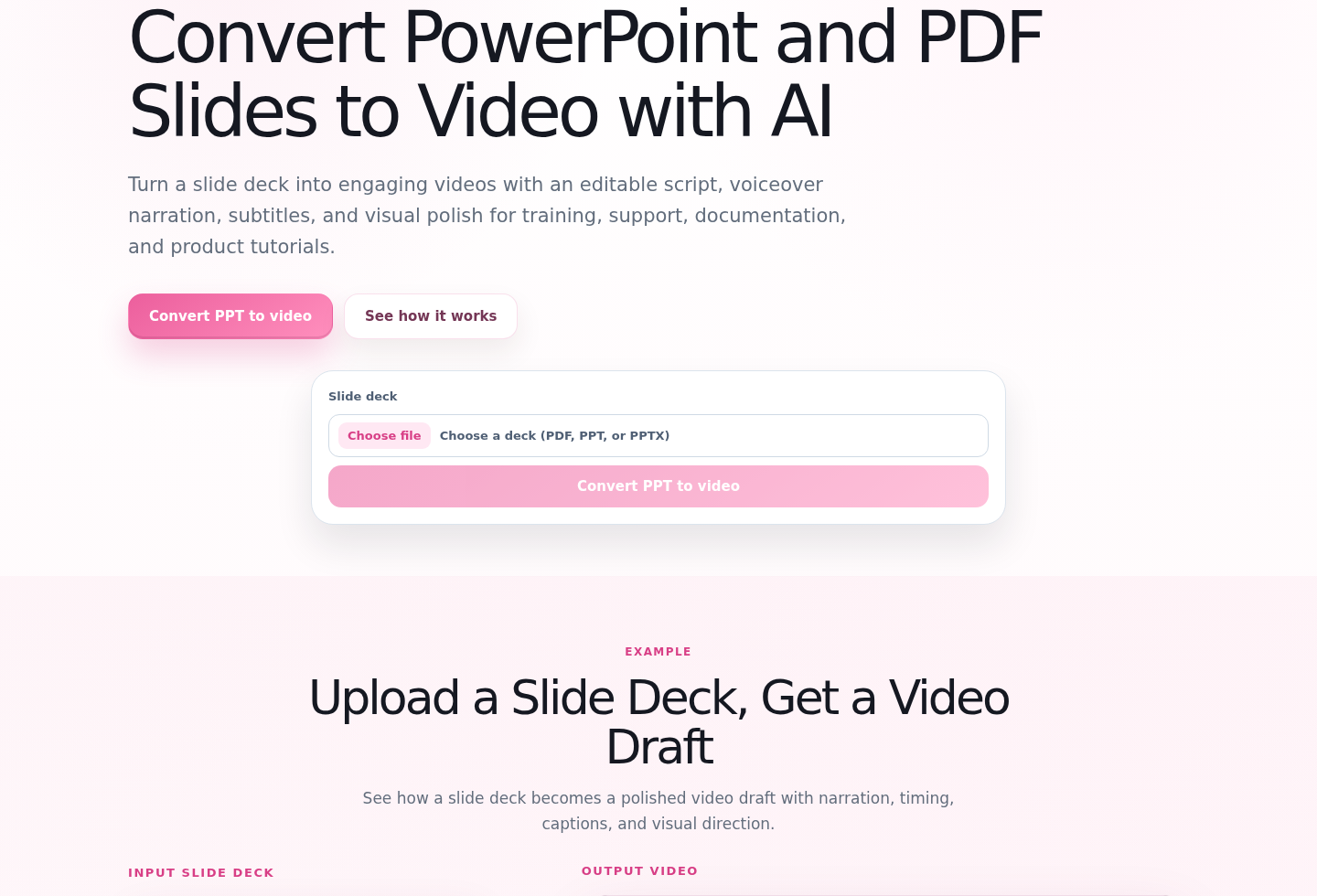
These settings shape the slide script, voiceover pacing, and scene plan for training, sales, or product education.
Step 3: Wait for processing to finish; the app redirects to the PPT Video result page.
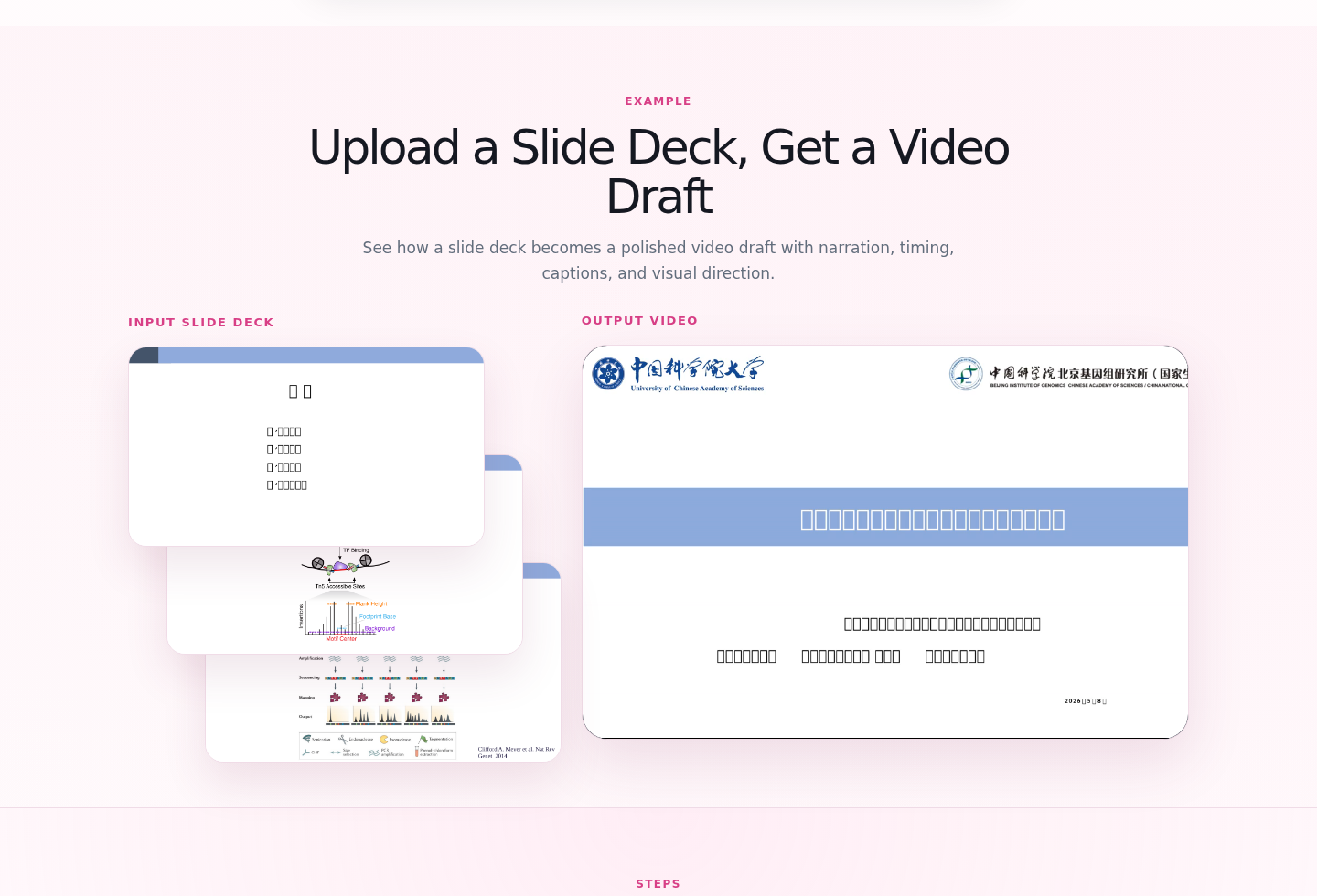
The result page shows slide scripts, scene plans, video preview, and downloadable artifacts.
Step 4: Review the slide order, per-slide script, visual pacing, and generated video preview.
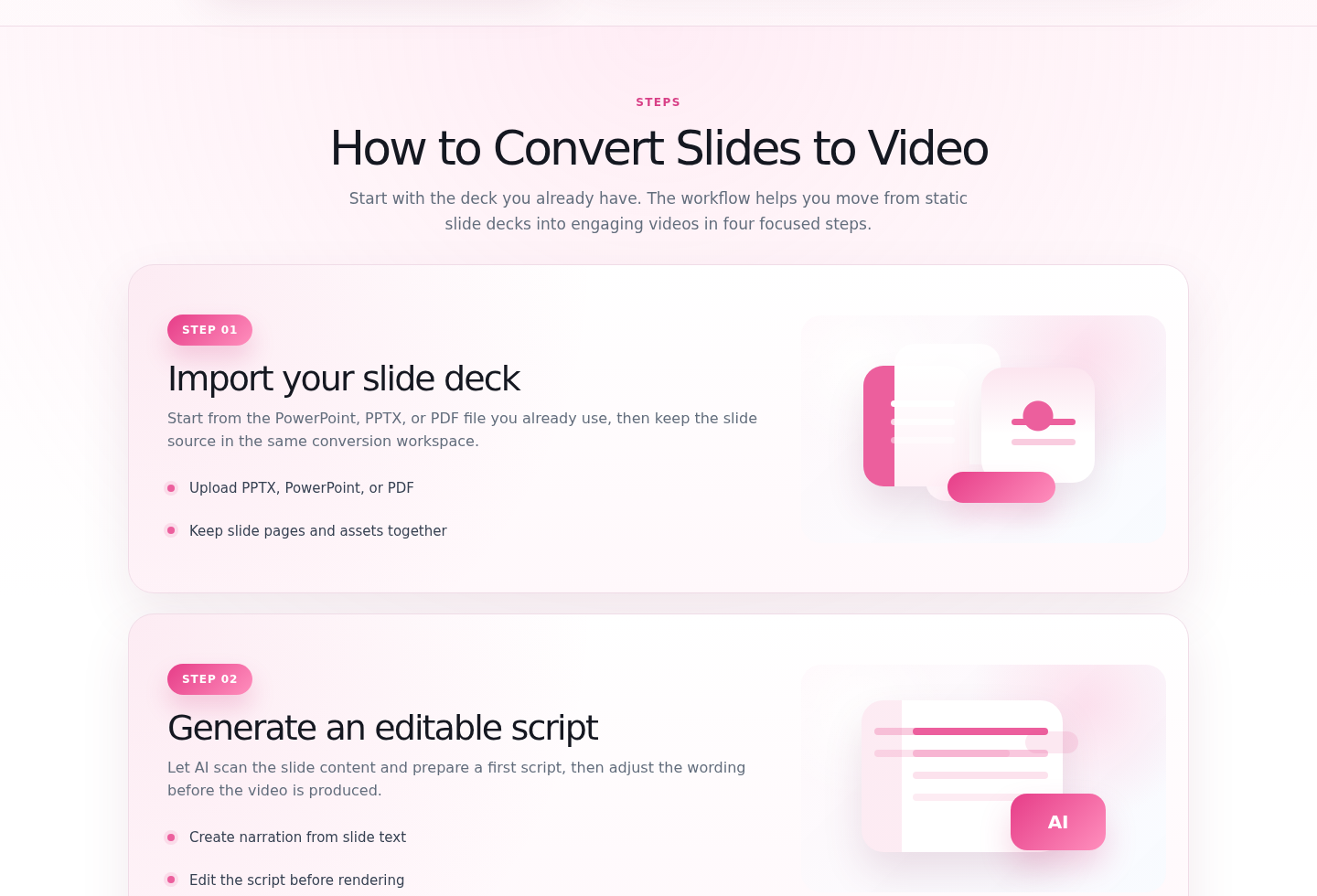
Check that each slide script explains the title, chart, and call to action without repeating unnecessary details.
Step 5: Export the MP4 video, slide script, scene plan, transcript, or result page link.
Common output formats: MP4 video, script document, scene plan JSON/text, transcript, and shareable result link.
Output formats
- MP4 video
- Slide-by-slide script
- Scene plan
- Transcript
- Result page link