Step 1: Complete the shared recording steps first
Click Recording Steps and complete the shared flow from extension installation through stopping the recording. Use https://www.clipflow.chat/features/guided-html-demo as the feature URL in that flow.
Record the path visitors should follow; clicks, target elements, and page state become interactive demo steps.
Step 2: Submit the recording so the system can analyze click order, snapshots, and step prompts.
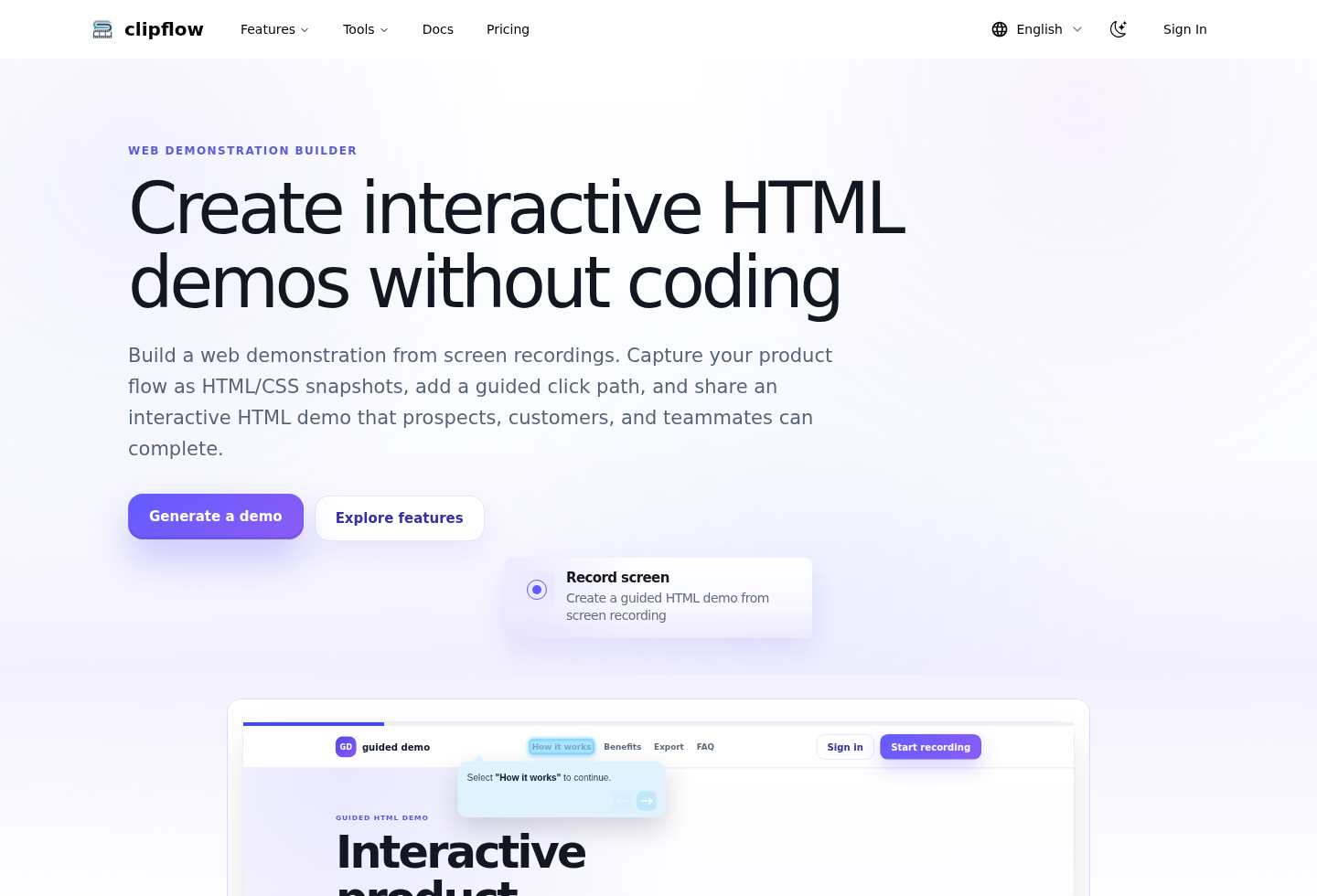
The generation flow creates guide title, body, target, and completion rule data for each step.
Step 3: Wait for processing to finish; the app redirects to the Guided HTML Demo result or edit page.
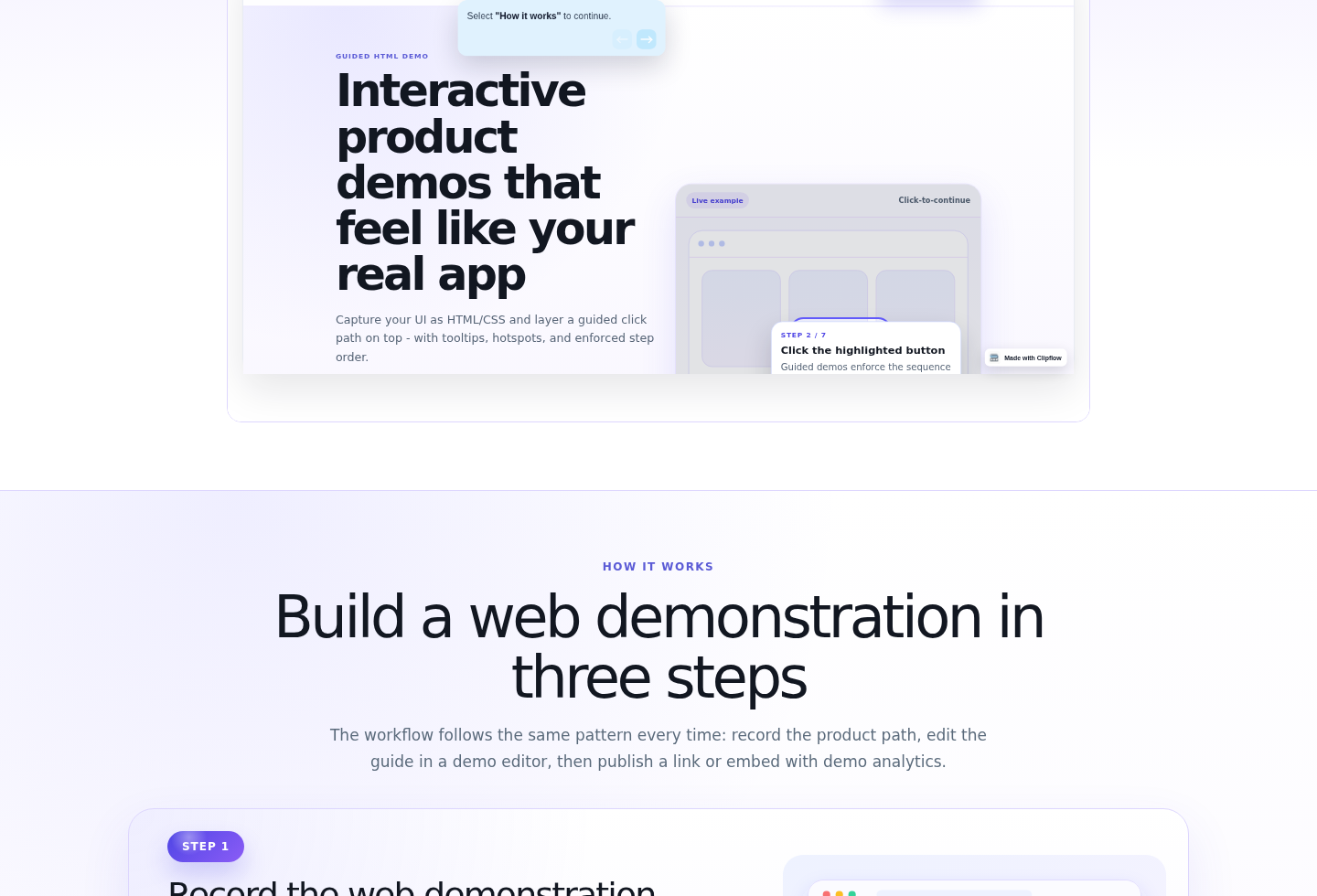
Review click targets, prompt copy, step order, personalization, and sensitive-data redaction.
Step 4: Preview the interactive demo and complete the flow as a visitor.
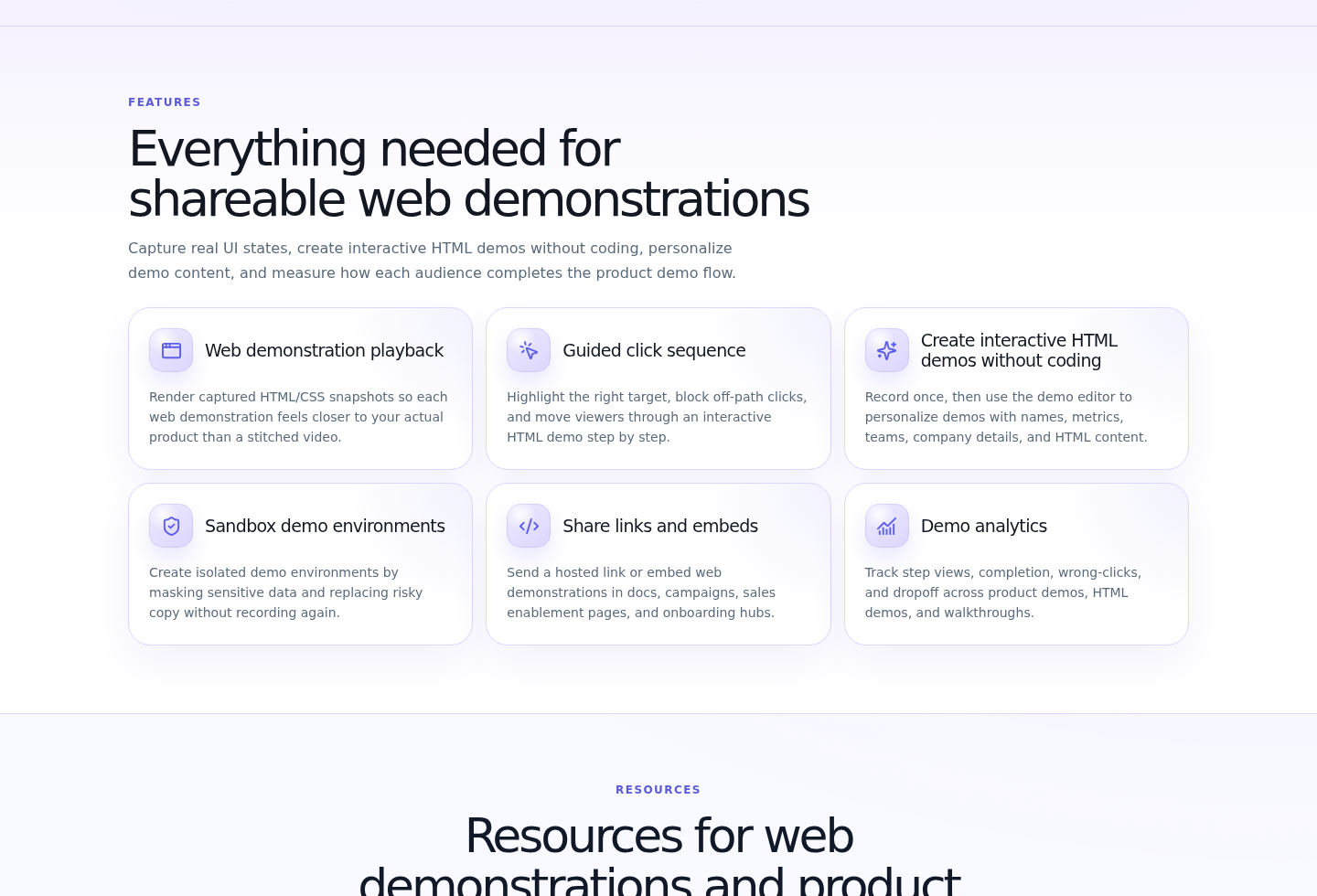
Check wrong-click behavior, next/back controls, step counters, scrolling, and mobile layout.
Step 5: Export the share link, iframe embed code, analytics page, and step bundle data.
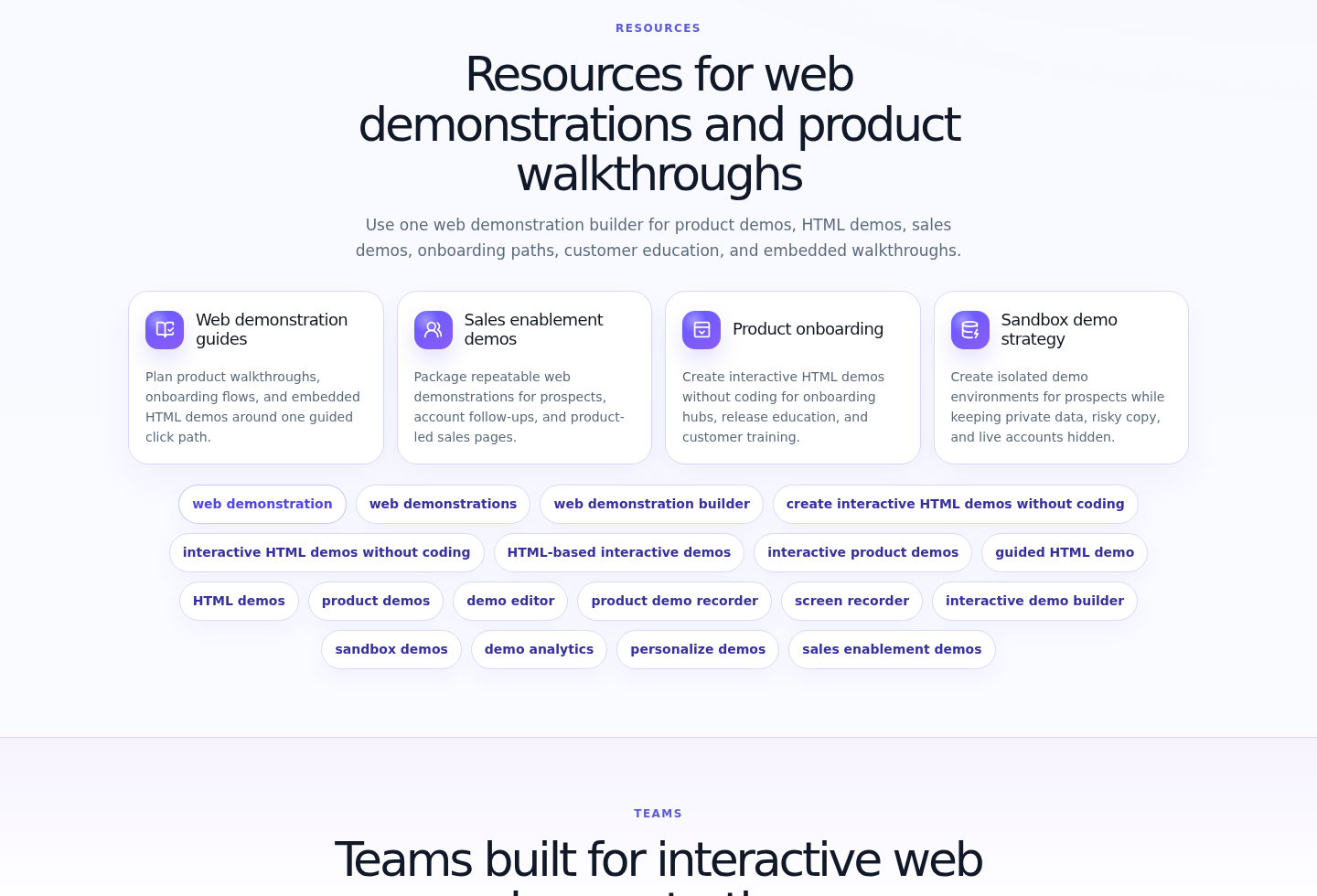
Common output formats: interactive HTML demo, share link, iframe embed, analytics page, and persisted step bundle.
Output formats
- Interactive HTML demo
- Share link
- iframe embed code
- Analytics page
- Step bundle data